Use fMRIPrep on Cluster

After you connect to the head node, you can start a Slurm session using the following command, for example:

srun -c 12 --x11 --pty bash -i

Then run the following commands to set up the environment:

module load nodejs
module load afni
module load ants
module load c3d
module load connectome-workbench
source /opt/scripts/user/conda3-2020.11.init.sh
conda activate fmriprep

The first time you run the above “module load afni” command, it will configure AFNI for you and copy the default data to your home folder. Configuration and data copying won’t happen again unless your “~/.afnirc” file is deleted or modified, or a newer version of AFNI is available on the cluster.

You can then run “fmriprep” command, for example, to check the vesion:

fmriprep --version

The current fMRIPrep version is fMRIPrep v23.0.1 (Jan 14, 2021).
Run AFNI on Cluster

Please be noted that SUMA (suma) won’t run when connecting to the cluster using X2Go, so we have to use ssh (Linux / MacOS users) or git bash (Windows users) to connect to the cluster if we need to run suma.

After you connect to the head node, you can start a Slurm session using the following command, for example:

srun -c 12 --x11 --pty bash -i

Then load the “afni” module:

module load afni

The first time you run the above command, it will configure AFNI for you and copy the default data to your home folder. Configuration and data copying won’t happen again unless your “~/.afnirc” file is deleted or modified, or a newer version of AFNI is available on the cluster.

We can then run “afni” or “suma” commands, for example, to check vesions and the current AFNI installation:

afni -version
suma -version
afni_system_check.py -check_all

The current AFNI version is AFNI_21.0.03 (Jan 14, 2021).

Connecting to Cluster Using X2Go

X2Go is a Remote Desktop solution for connecting to Linux servers. X2Go Client can be installed on Windows, MacOS or Linux systems.

X2Go can keep your GUI sessions to the Linux servers alive if you don’t sign out even if you turn off your computer where you run the X2Go client. So, please close GUI applications (for example, browsers) or sign out your X2Go sessions unless you need to keep them running.

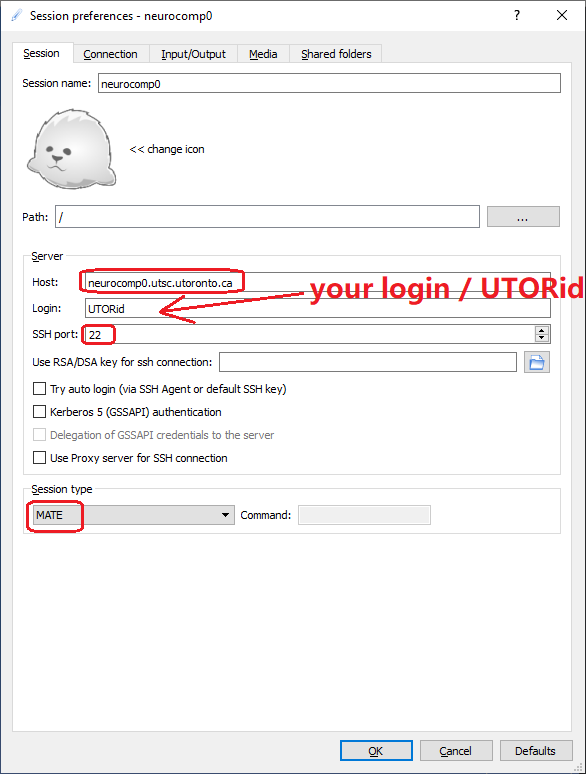
To connect to the PSY cluster, please choose “MATE” for the “Session type”.

X2Go Session Preferences

Using Environment Modules

Note: you need to sign into the Psychology cluster (new, neurocomp0) to run the following commands.

1) List available modules

module avail

2) List loaded modules

module list

3) Example – load a module

module load python/anaconda3

4) Example – unload a module

module unload python/anaconda3

5) Example – “module help” command

module help python/anaconda3

6) Example – “module whatis” command

module whatis python/anaconda3