Run AFNI on Cluster

Please be noted that SUMA (suma) won’t run when connecting to the cluster using X2Go, so we have to use ssh (Linux / MacOS users) or git bash (Windows users) to connect to the cluster if we need to run suma.

After you connect to the head node, you can start a Slurm session using the following command, for example:

srun -c 12 --x11 --pty bash -i

Then load the “afni” module:

module load afni

The first time you run the above command, it will configure AFNI for you and copy the default data to your home folder. Configuration and data copying won’t happen again unless your “~/.afnirc” file is deleted or modified, or a newer version of AFNI is available on the cluster.

We can then run “afni” or “suma” commands, for example, to check vesions and the current AFNI installation:

afni -version
suma -version
afni_system_check.py -check_all

The current AFNI version is AFNI_21.0.03 (Jan 14, 2021).

Connect to Cluster with GUI using Git Bash and VcXsrv

Windows users can connect to the cluster with GUI using Git Bash and VcXsrv X Server:

  1. Download and install VcXsrv Windows X Server
  2. Download and install Git (either Setup or Portable version works)
  3. Start VcXsrv with the default settings. After it starts, an X icon appears in the System Tray.
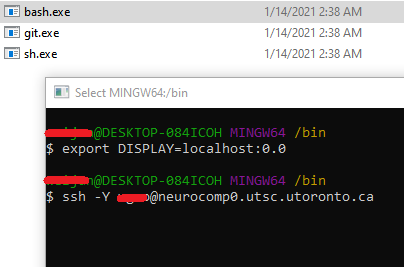
  4. Start Git Bash and run the following commands in the terminal:
    export DISPLAY=localhost:0.0
    

    The following is an example screenshot:

Connect to Cluster with GUI Using ssh Command

Linux and MacOS users can connect to the cluster using ssh command:

For Linux users – open a terminal and then run the following command

For MacOS users – open a terminal and then run the following command (use “-X” instead of “-Y” if “-Y” doesn’t work)

For Windows users – please see instructions for using Git Bash and VcXsrv X Server